Creating Customer Accounts
Each customer in Vendica is set up with a ‘Customer Account’.
The 'Customer Account' screen acts as a dashboard.
Access all the information for a customer here.
This includes:
Note
'Account Customers' are different from normal customers.
The difference is they have a 'Credit Limit' set.
- Contact details
- Sales history
- Current and past debts/credits
- Account payment processing
Searching Customers
This section of the guide describes how to search customer accounts.
In the main menu, go to the Point Of Sale section.
Select 'Customer Accounts'.
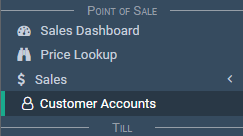
The search page appears.
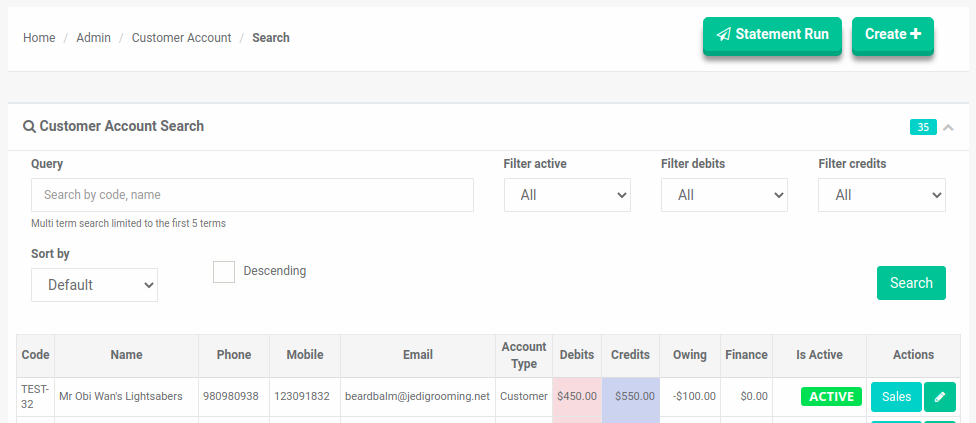
Notice the search filters:
- Query
- Filter active
- Filter debits
- Filter credits
- Sort by
- Descending
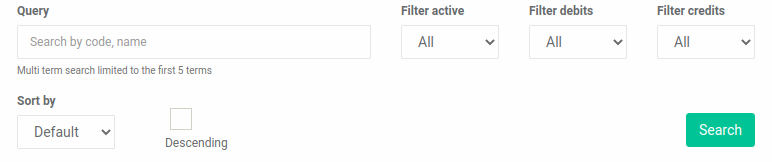
Enter your filter values.
Select the 'Search' button.

Now you can view your search results.
Creating Customers
Via The Customer Accounts Screen
This section of the guide describes how to create customer accounts.
In the main menu, go to the Point Of Sale section.
Select 'Customer Accounts'.
The search page appears.
Select the 'Create' button.

The 'Customer Account' page appears.
Enter a name for the account and select the applicable checkboxes:
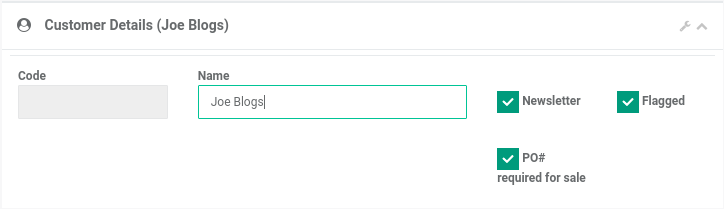
Select the 'Save' button.
The 'Customer Account' page appears.
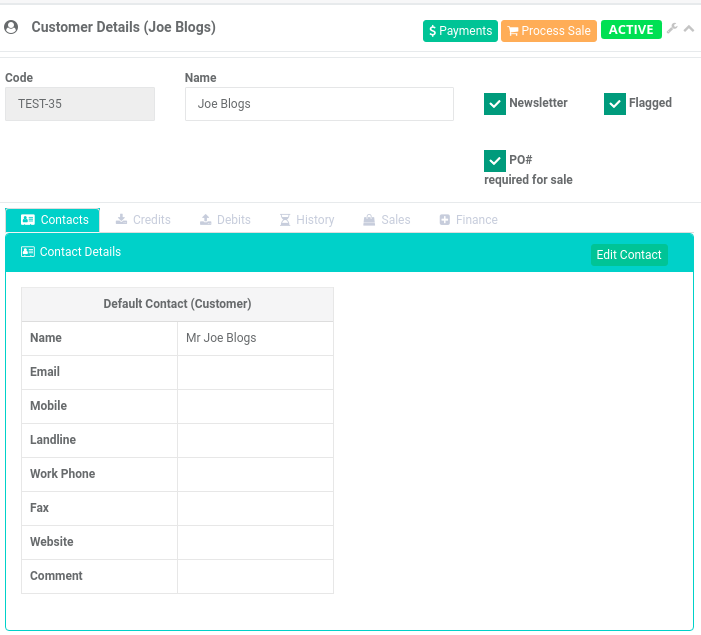
Notice the customer contact details are empty.
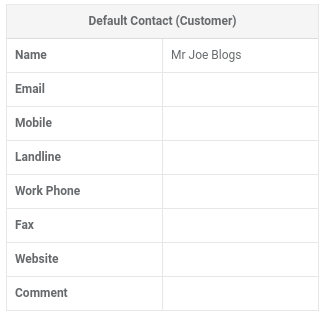
If you need, select the 'Edit Contact' button to add the contact details.

You can now start to use your new customer.
Via The Sales Screen
See the documentation on how to create customers via the sales screen.
Deactivating Customers
This section of the guide describes how to deactivate customer accounts.
Search for and open a customer account
Select the 'Deactivate' button to deactivate the account.
Notice the 'Inactive' label on the 'Customer' screen.

Your customer is now inactive.