How to configure print settins
Opening Print Settings
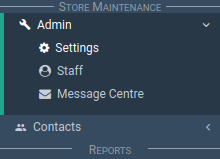
In the main menu, go to the Store Maintenance section.
Select 'Admin' > 'Settings'.
Select the 'Printing' tab.
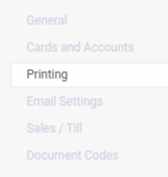
The Printing section appears.
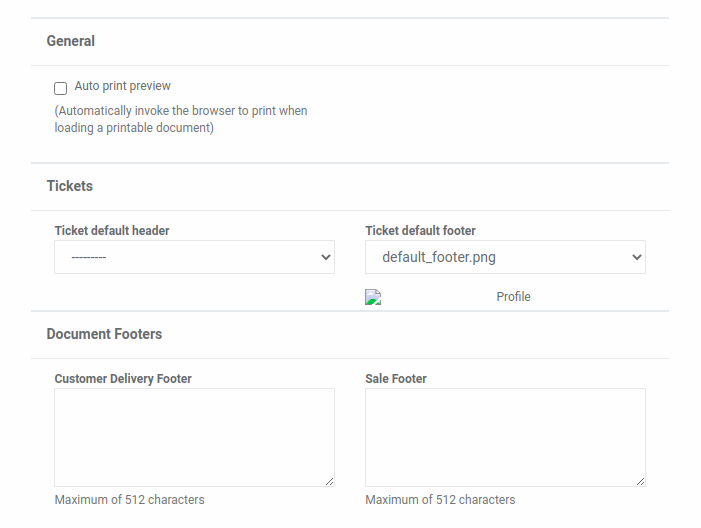
General
Open the 'Printing' settings section.
Locate the 'General' section.
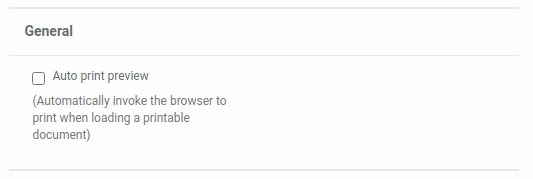
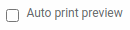
Auto Print Preview
Automatically invoke the browser to print when loading a printable document.
About print previews:
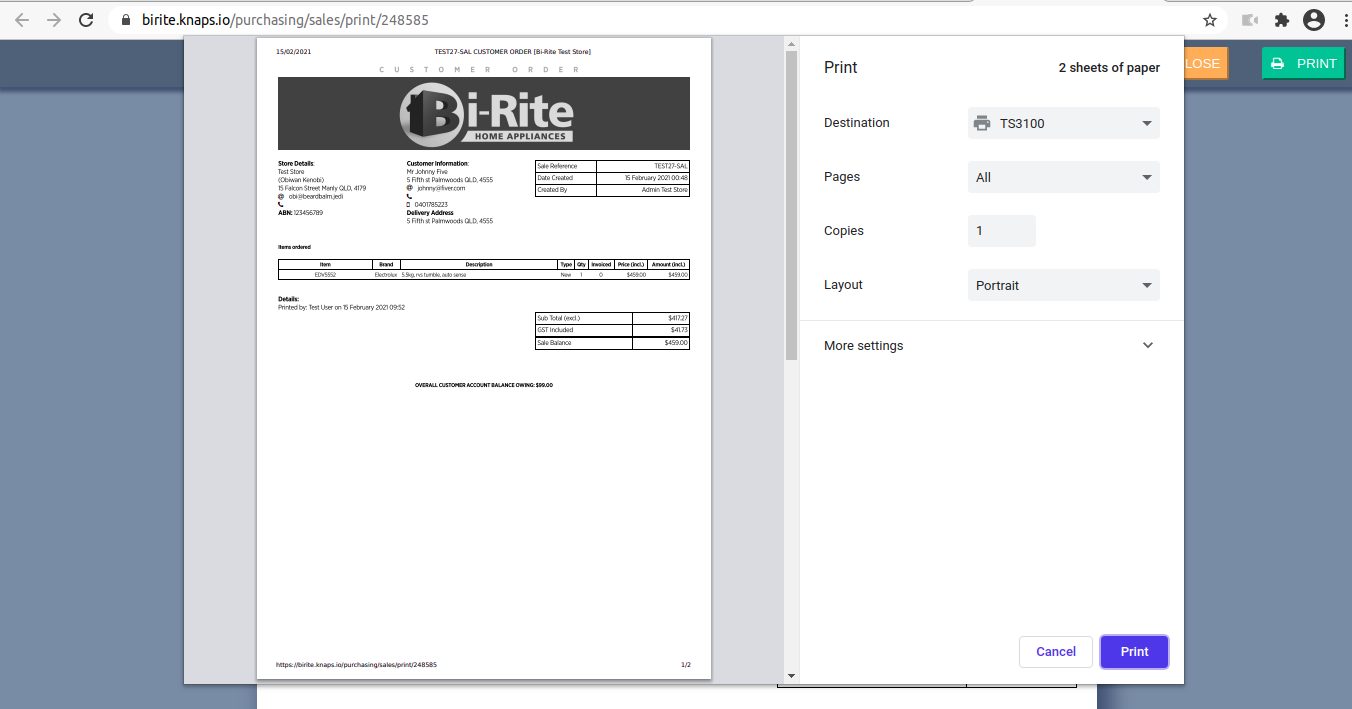
Vendica prints via a web browser.
When you select a 'Print' button on a Vendica screen, a new tab appears with your print-out.
Web browsers offer a print preview that looks like this:
Tickets
Open the 'Printing' settings section.
Locate the 'Tickets' section.
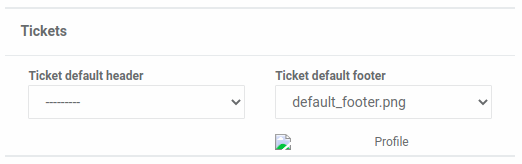
Ticket Default Header
Each ticket print-list has a customisable header image.
You can set an image to be a default image.

Ticket Default Footer
Each ticket print-list has a customisable footer image.
You can set an image to be a default image.

Document Footers
Open the 'Printing' settings section.
Locate the 'Document Footers' section.
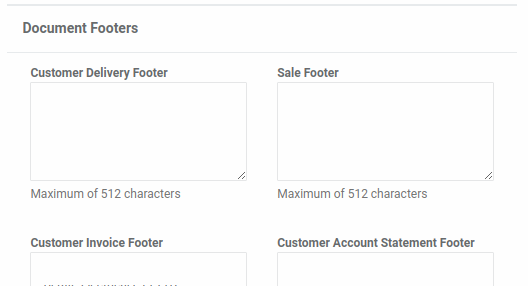
Customer Delivery Footer
Displays a custom message at the bottom of your 'Sale Delivery' print-outs.
Enter text into the input box.
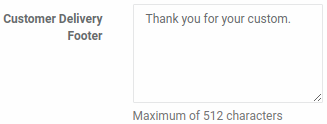
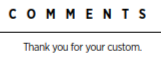
The text now appears on all 'Sale Delivery' print-outs.
It is located in the 'Comments' section at the bottom.
Note
If you edit the footer message, all historical print-outs keep the former message.
Only new deliveries get the new message.
There is no way to edit historical footer messages for deliveries.
Sale Footer
Displays a custom message at the bottom of your 'Customer Order' print-outs.
Enter text into the input box.
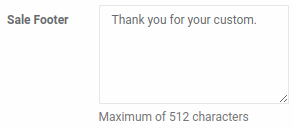
The text now appears on all 'Customer Order' print-outs.
It is located in the 'Comments' section at the bottom.
Note
If you edit the footer message, all historical print-outs loose their former messages.
Every sale gets the new message.
There is no way to keep the original historical footer messages for Sale print-outs.
Customer Account Statement Footer
Displays a custom message at the bottom of your 'Customer Account Statement' print-outs.
Enter text into the input box.
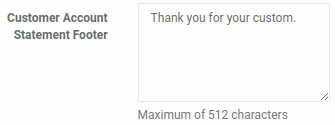
The text now appears on all 'Customer Account Statement' print-outs.
It is located in the 'Comments' section at the bottom.
Note
If you edit the footer message, all historical print-outs loose their former messages.
Every statement gets the new message.
There is no way to keep the original historical footer messages for Statement print-outs.
Product Ticket Comment
Displays a default custom message at the bottom of your 'Product Ticket' print-outs.
Enter text into the input box.
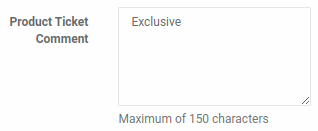
The text now appears on all 'Product Ticket' print-outs.
It is located in the section above the ticket footer.
Note
- If you edit the ticket comment:
- All historical print-outs loose their former messages
- Every product ticket gets the new message
- There is no way to keep the original historical ticket messages - You can override the store level default message:
- To do this, set the comment for the print-list via the print-list screen. - You can take it further and override the list level comment: