How to place remittance payments in advance
Important
Unallocated credits don't change until Head Office approves the remittance. This applies to both advance payments and remittances using unallocated funds.
Pre-requisite
Before following this guide, you must start a new remittance. This is required to access the remittance fields (Payment Remittance Header, Payment Remittance Details) and view your Unallocated Credit.
Overview
This guide walks you through placing remittance payments in advance, including how to use unallocated funds to remit charges. Advance payments and unallocated funds allow you to process payments before full approval, giving you greater flexibility in your accounting workflow.
Placing Advance Payments
Notice the 'Unallocated Credit' is zero dollars.

Enter the advance amount in the 'Payment Amount (incl.)' input box.

Enter a reference for this payment in the 'Bank Reference' input box (e.g. a payment description or deposit reference).

Select the 'Complete' button.

Checking Unallocated Funds
Locate the 'Unallocated Credit' above the 'Payment Remittance Header' section.

Using Unallocated Funds
Notice there is 'Unallocated Credit' available.
Locate the 'Payment Remittance Details' section.
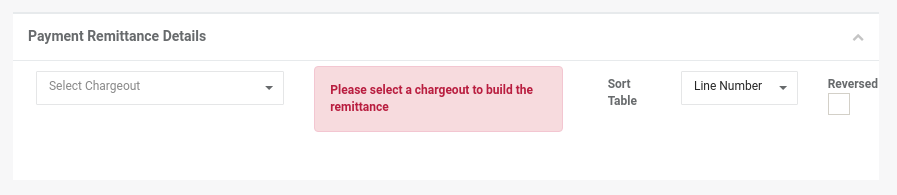
Select a charge-out.
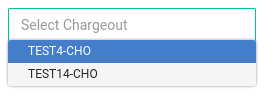
Notice a list of charges appears.

Notice the 'Difference' is equal to the 'Unallocated Credit'. The 'Difference' represents your remaining unallocated balance.

Tick the checkbox for each charge you want to remit.
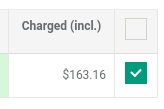
Notice the 'Difference' decreases as you select charges.

Important
Make sure the 'Payment Amount' is zero — this ensures only unallocated payments are used and no new funds are committed.

Enter a reference for this payment in the 'Bank Reference' input box (e.g. a payment description or deposit reference).

Select the 'Complete' button.
To confirm that the total decreased, start a new remittance and notice the decrease in your 'Unallocated Credit'.

Summary
| Step | Action |
|---|---|
| Pre-requisite | Start a new remittance to access remittance fields and view Unallocated Credit. |
| 1. Place Advance Payments | Enter the advance amount in Payment Amount (incl.); add a reference in Bank Reference; click Complete. |
| 2. Check Unallocated Funds | Locate the Unallocated Credit above the Payment Remittance Header section. |
| 3. Use Unallocated Funds | In Payment Remittance Details, select charges to remit and tick checkboxes; observe Difference decrease as charges are selected. |
| 4. Finalize Unallocated Remittance | Ensure Payment Amount is zero (only unallocated payments); enter a reference in Bank Reference; click Complete. |
| 5. Verify | Start a new remittance and confirm the decrease in Unallocated Credit. |